New · AI Connector
Ask your AI assistant about your cases in plain English. Claude finds the documents, reads them, and links you straight back to Athens Search, with exactly the access you already have.
Read-only · Your Claude account · Disconnect any time
Firm administrator? See the administrator guide. Other assistants: see the connectors overview.
What you can do
Once connected, Claude can use eight read-only tools on your behalf, across documents and emails.
See the cases you are a member of, with their case numbers and links into Athens Search.
"Which cases do I have access to?"
Search a case by keyword, custodian, tags and date range. Every hit carries its title, custodian, tags, Bates number and a link to the document.
"Find documents from John Smith tagged Privileged that mention indemnification."
Claude reads a document's or an email's extracted text, in pages for long agreements, and answers questions about it.
"Open the purchase agreement and list every termination clause."
Find emails by sender, recipient, subject, words and date. Each hit shows who wrote to whom, when, and how many attachments it has.
"Show emails from Mary Jones to Robert Lee in March about the closing."
Counts of documents and emails, custodians, the date span of the files, and the tags the team uses.
"Give me an overview of this case and who the custodians are."
List a case's productions and check one's status: how many documents, how far along it is, and which documents failed.
"Is the latest production finished? Did any documents fail?"
Setup
You need an Athens Search account and a paid Claude plan. Your firm's admin must have the AI connector turned on.
Athens Search is listed in Claude's connector directory. Open claude.ai/directory/athens-search while signed in to Claude, or click your profile icon, choose Settings, open Connectors and search for Athens Search. Click Add.
If you cannot see the directory listing yet, choose Add custom connector instead, name it "Athens Search" and paste this URL. Claude detects the right settings automatically. Leave them as they are and click Add. Both "Use Claude's published identity" and "Register automatically" work.
https://mcp.athenssearch.com/mcp
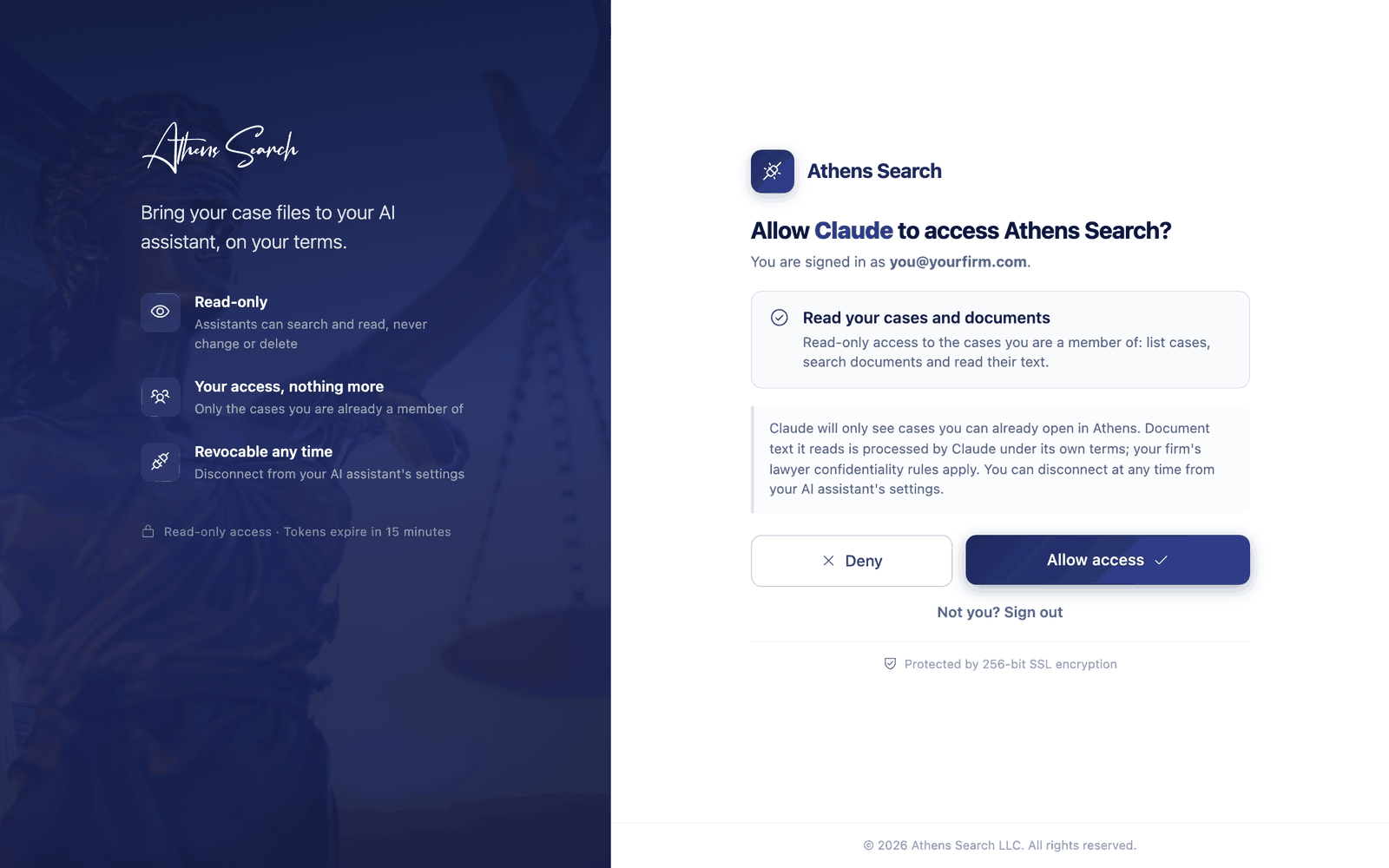
Click Connect. Athens Search opens, you sign in with your usual account, and a consent screen shows exactly what Claude may do (read your cases and documents). Click Allow access and you are back in Claude.
Start a chat with the Athens Search connector enabled and ask about your cases. To stop, disconnect it under Settings → Connected apps in Athens Search, or in Claude's settings.
Security & privacy
The connector can search and read. It cannot tag, edit, delete, upload or produce. Write actions would be a separate, opt-in feature.
Athens Search enforces case membership on every request. Claude sees exactly the cases you can open in the app, and nothing from other firms or other cases.
Connections use OAuth 2.1 with short-lived access tokens. Your Athens Search password is never shared with Claude.
Disconnect under Settings → Connected apps in Athens Search and the assistant is cut off on its next request. You can also disconnect in Claude's settings.
A company admin decides whether people in the firm may connect an assistant. Turning it off stops every connected assistant on its next request.
Company admins see every assistant request: who asked, which tool, which case, when and the result, with filters and CSV export. The log records what was asked, never the document text, and entries are deleted after one year.
Each person can make up to 60 requests a minute, a few at a time, so a runaway assistant cannot overload the service.
When you ask Claude about a document, the text it needs is sent from Athens Search to Claude and handled under Anthropic's terms for your Claude plan. Each firm decides whether that is appropriate for its matters; we recommend reviewing your provider's data-handling terms with counsel before connecting client files.
Availability
Available now
Claude: cases, document and email search, reading, case overviews, tags and productions. Firm on/off switch, Connected apps and the activity log.
Coming next
ChatGPT.
Planned
Other assistants that support the open Model Context Protocol (MCP) standard, which this connector is built on.
FAQ
https://mcp.athenssearch.com/mcp and that you signed in with your Athens Search account. If Claude says "Not authorized", you may not be a member of that case. If it says the connector is turned off for your firm, ask your company admin. If it says a usage limit was reached, wait a minute. If the connection stops working, disconnect and connect again. Still stuck? Contact us.Already a customer? Follow the connection steps. New to Athens Search? Book a demo and we will show Claude answering questions on a sample case.